
Support Center
teams. We are here to keep your enterprise running.
Our NPS score is 84 for November 2025
Departmental Support Hub
Connectivity Team
Support for SD-WAN, Leased Lines and Broadband.
TECHNICAL SUPPORT
ORDERS & PROVISIONING
COMMON QUESTIONS
Troubleshooting your broadband line (DSL, ADSL, FTTC)
Having connection issues? Experiencing slow speeds?
If you are experiencing problems connecting to your broadband, there are some steps you can try to resolve it. It will save time if you can try these first before calling us.
- Check the status lights on your router
- A flashing DSL light usually indicates that there is a physical connection issue
- A red internet light usually means that there is a problem with the configuration of the router credentials
- Reboot the router (power down for at least five minutes)
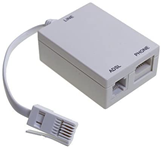
- Replace the Micro Filter
- Replace the DSL cable (RJ11)
- Remove any extension cables from he line
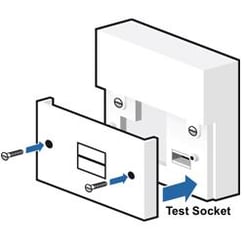
- Remove the BT faceplate on the master socket ad connect your router to the test port behind.
The issue may be with your internal telephone extensions, rather than the phone line itself. One way to check this is by connecting your router to your test socket.
The test socket is your main socket. If you don’t know where it is, it’s typically where your broadband cable comes into your property.
- Replace the router, if possible (if not owned/managed by FluidOne)
Contacting us
If you have tried the troubleshooting steps above and are still experiencing connection issues, please contact our support team on 0345 868 7848 (Choose Option 1), who will be happy to assist you further.
In order to help us help you, please ensure that you have the following information to hand:
- Your contract details. If you do not have your contract number, the full property postcode will help us allocate your contract
- Full details of the issue you are experiencing
- The impact it is having on you, your users and your business
- Your contact details

Troubleshooting connection issues for Ethernet Services (EFM / Leased line)
Experiencing a complete loss of service for your ethernet service?
If you are experiencing problems connecting to your ethernet network, there are some steps you can try to resolve it. It will save time if you can try these first before calling us.
- Check the power supply to all of your devices on the network on-site site e.g. routers, switches, firewalls etc.
- Reboot carrier termination equipment - this is the first device that the carrier line connects into within your premises. This is usually a BT ADVA.
- Reboot any additional termination equipment on the network – this may have been provided by FluidOne or added by yourself
- Check all cabling between all termination equipment
- Confirm the LED status of all termination equipment
Contacting us
If you have tried the troubleshooting steps above and are still experiencing connection issues, please contact our support team on 0345 868 7848 (Choose Option 1), who will be happy to assist you further.
In order to help us help you, please ensure that you have the following information to hand:
- Your contract details. If you do not have your contract number, the full property postcode will help us allocate your contract
- Full details of the issue you are experiencing
- The impact it is having on you, your users and your business
- Your contact details
Why did my installation appointment fail?
What is a Wayleave?
Can FluidOne pre-configure the LAN Side IP Subnet on a router for our Broadband/Fibre Ethernet circuit order?
When will my Broadband connection go live?
Why do I need a Site Survey visit before a PSTN/Fibre Ethernet installation?
What is a Bronze, Silver or Gold Address?
Business IT Team
End-user support, hardware procurement, and M365 management.
TECHNICAL SUPPORT
(Outside of these hours the team can be contacted as per contract terms)
ORDERS & PROVISIONING
COMMON QUESTIONS
Need assistance with server changes? Ensure you have this information ready before contacting us
If you require a change to one of your hosted servers, such as disk space, CPU level, or virtual memory, completing the questions below will help us action your request as quickly as possible. Simply include your answers when contacting our Service Desk, and an engineer will action your request.
User requesting: Who should we contact to confirm the change?
Contact Number: How best to contact that person?
Server Name/IP address: Which machine or machines are the subject of the change?
Change requested: Disk Space, CPU Count, Memory?
Add/remove: Would you like the resources increased or decreased?
Current amount: Please provide us details of the existing resource level.
New amount: Please provide us details of the required resource level.
Proposed time if a reboot is required: When can we reboot the device with minimal impact to your business?
Providing us with the answers to these questions when you first contact us will allow us to route your ticket correctly and action it quickly.
Please note that charges may apply for this service, depending on your service contract.
Having trouble with your monitor? Try these quick troubleshooting steps
- Check to see the monitor is plugged in and switched on. If it is switched on, you would usually see a light glowing over the power button – please press the button to turn the screen on
- If there is power to the screen but no picture, please check to ensure there is a cable plugged in to go from the monitor to the computer.
- After making sure both cables are present and there is still no picture, please try a different cable to go from the monitor to the computer. If this does not work, please see step 4.
- The final step would be to check the monitor with another computer. If the monitor is still not working, it is likely a faulty monitor. On the other hand, if the monitor does work, then the fault is with the computer.
If after following the above steps the issue has not been resolved, please contact our support team on 0333 043 4060 for assistance.
Please note that charges may apply for this service depending on your service contract.
Enterprise IT Team
Server management, cloud infrastructure, and data center ops.
TECHNICAL SUPPORT
ORDERS & PROVISIONING
COMMON QUESTIONS
UC & Voice
Hosted telephony, Microsoft Teams Voice, and Contact Centres
TECHNICAL SUPPORT
For technical support with 8x8 services you can also email our specialist team directly on:
Email: 8x8support@fluidone.com
ORDERS & PROVISIONING
Email: 8x8@fluidone.com
COMMON QUESTIONS
8x8 Work users set-up
Ready to set-up your users on 8x8 Work?
You may find this step-by-step guide helpful:
8x8 Admin Console—Set up 8x8 Work users
If you would like an extra helping hand our team of experts would be happy to talk you through the set-up steps.
Get in touch by emailing 8x8support@fluidone.com.
Please note that additional charges may apply for this service.
8x8 Ring Groups
Trying to set-up Ring Groups in the 8x8 Admin Console?
Check out this useful article:
How to Set Up Ring Groups in 8x8 Admin Console - 8x8 Support
If you would like an extra helping hand our team of experts would be happy to talk you through the set-up steps.
Get in touch by emailing 8x8support@fluidone.com.
Please note that additional charges may apply for this service.
8x8 Voicemail Greeting
Trying to set-up the voicemail greeting in the 8x8 Admin Console?
Check out this useful article:
How to Set Up Voicemail Greeting in 8x8 Admin Console - 8x8 Support
If you would like an extra helping hand our team of experts would be happy to talk you through the set-up steps.
Get in touch by emailing 8x8support@fluidone.com.
Please note that additional charges may apply for this service.
8x8 Call Forwarding
Trying to set up call forwarding in the 8x8 admin console?
Check out this useful article if you need help with setting up call forwarding for extensions, ring groups and auto attendants in the 8x8 admin console.
How to Set Up Call Forwarding in 8x8 Admin Console - 8x8 Support
If you would like an extra helping hand our team of experts would be happy to talk you through the set-up steps.
Get in touch by emailing 8x8support@fluidone.com.
Please note that additional charges may apply for this service.
Mobile Support
Corporate mobile fleets, SIM management, and MDM.
TECHNICAL SUPPORT
ORDERS & PROVISIONING
COMMON QUESTIONS
I have no signal on my device, what do I do?
There could be several reasons for your device to have no signal. The fault may be caused by your device, your SIM or the network.
To begin with try restarting the device a few times as this can often re-establish the connection to the network. If this does not resolve the issue contact our support team on 0345 868 7848 who will run through further diagnostics.
On occasions, the network will carry our maintenance work to ensure they are providing customers with the best service possible. This, unfortunately, can cause some disruption to service. Please note, should we believe the disruption in service to stem from your SIM we will gladly send you out a replacement which is usually received the next business day
Why was my SIM not activated when it was sent to me?
What is Wi-Fi calling and how can I use it?
Quite simply, Wi–Fi calling allows you to make phone calls and send text messages over wireless internet networks rather than over the 3G or 4G mobile internet connection that you normally use that is generated by mobile phone masts. This service is ideal if you have poor mobile reception at home.
If you are somewhere without mobile reception but with Wi–Fi, such as an underground station, you only need to connect your smartphone to the network to make a call. It is that simple.
Most of our mobile tariffs can use Wi-Fi calling. However, to allow the service to work you must also have a compatible mobile device. This information can easily be found online or alternatively get in contact with the service desk and we would be more than happy to check for you
What is a manual roam and how do I complete a manual roam?
A manual roam basically means resetting your phones network connection so it can get a shiny, new, fresh connection to the network. It can solve lots of problems such as: Poor or no signal, Inability to send or receive SMS, Slow data speeds, Intermittent data and Inability to connect to data while roaming.
The process varies from device to device and more comprehensive guides can be found online that will talk you through step by step depending on the device make and model. However please see below generic guide for both IOS and Android devices.
For IOS devices:
- Go to Settings and then Carrier (or Mobile Data -> Network Selection for newer versions of iPhone)
- Toggle OFF the automatic mode and manually change the carrier to something other than the network you are connected to
- Leave the menu and wait until it fails to connect to another carrier.
- Once it fails, repeat the process and this time choose the correct network or select automatic.
For Android devices:
- Go to Settings and then Wireless networks.
- Go to Mobile networks and then Network operators.
- Search for networks.
- Select a network other than current network
- Wait until it fails to connect.
- Repeat the process and this time choose the correct network or “select automatically” (preferable)
How do I stop unwanted sales or marketing calls?
What will I need to make a video call?
You'll need the following:
- A phone with video calling capability (the person you're calling will also need one).
- To be in an area with 3G or 4G coverage.
- For further video calling instructions, check your phone's manual or call the service desk on 03458687848
Unable to make or receive calls?
If you are experiencing problems making or receiving calls, try these troubleshooting steps:
- Try restarting your handset.
- Try removing the SIM card, putting it back in and restarting the handset.
- Try the SIM card in another handset which is known to work. If it then works then you can deduce that it is the handset that is faulty.
- Next you can try turning off the wi-fi and checking whether the Mobile Data is working.
- If it is working, contact us on servicepoint@fluidone.com with your number so that we can check whether there is a voice bar in place. Please be prepared to complete a Fault Form for further assistance.
- If it isn’t working, contact us on servicepoint@fluidone.com with the SIM serial number (found on the back of the SIM card) so that we can verify that you have the correct SIM card and that all the correct services have been activated.
Having trouble using your mobile data?
If you are experiencing problems using your mobile data, try these troubleshooting steps:
- Check your phone settings to ensure that the data is enabled:
- For Android devices, go to:
Settings > Connections > Data Usage > Ensure the Mobile Data is toggled on
- For Apple devices, go to:
Settings > Mobile Data > Ensure Mobile Data is toggled on
- Check the APN settings
An Access Point Name (APN) provides all the details that your device needs to connect to mobile data. If you are setting up a new device or putting your SIM card into a device for the first time, your network operator should send you their APN details in a configuration message. Your APN details will be different depending on your network operator.
- For Android devices, go to:
Settings > Connections > Mobile Networks > Access Point Names
- For Apple devices, go to:
Settings > Mobile Data > Mobile Data Options > Mobile Data Network
- Try restarting your handset.
- Try removing the SIM card, putting it back in and restarting the handset.
- Try the SIM in another handset which is known to work to rule out the possibility that the issue is with the handset and not the service.
If you have tried the above troubleshooting steps and are still experiencing problems using your mobile data, feel free to contact our specialist mobile support team on 0345 868 7848 Option 1 or contact us by email at servicepoint@fluidone.com for further assistance.
Check for network outages using these Coverage Checkers
If you are having problems making or receiving calls you can check for network outages using the below links:
Vodafone - https://www.vodafone.co.uk/network/status-checker
EE - https://coverage.ee.co.uk/coverage/ee
Three - http://www.three.co.uk/support/network_and_coverage/network_support
Voicemail Activation
To activiate your voicemail on your handset, dial the below short codes and follow the instructions:
Vodafone 1211
O2 1750
EE 222
Frequently Asked Billing Queries
What calls are included within my monthly allowance of minutes?
Calls to standard UK mobiles and landlines are included within your allowance.
How much does it cost for calls outside my allowance?
Please check the https://www.fluidone.com/OOB_Call_Charges_For_Annexe.pdf table to see how much calls outside of your allowances are charged at.
For charges related to calling other countries or roaming, please check https://www.fluidone.com/OOB_Call_Charges_For_Annexe.pdf
What are premium rate services?
Premium rate services allow you to purchase a service or product from another company (Not FluidOne), and then add the charge to your monthly bill.
The most common examples are numbers starting with 118 or 09, which might include:
- Calls to chat lines or TV competitions and reality shows, like I'm a Celebrity and Strictly.
- Premium text messages for TV competitions (these usually say something like 'text WIN' to a certain number) or charity TV events like Comic Relief.
- Purchasing apps and making e-money transactions.
How can I see which premium rate service I've been charged for?
You should be able to see what you've been charged for on your monthly bill. If all you can see is a number, try putting it through an online phone number checker. You may also have received a text message to confirm your purchase, so keep an eye out for that.
How do I make calls to premium rate numbers?
Premium rate numbers provide services like news, sport, weather, games or adult content. If you call a premium rate number it won't come out of your monthly allowance, and you'll be charged at a higher cost than regular calls. All customers have premium calls turned on by default. You can switch this feature off by emailing servicepoint@fluidone.com
How can I save money with MobileFlex?
FluidOne's MobileFlex regularly reviews your needs with in-month and end-of-month management reporting to highlight areas of spend that can be addressed by better solutions. We help our customers make informed decisions based on their usage throughout the agreement which could help cut costs.
If you would like to find out more about our mobile services, need assistance or simply advice, please get in touch with your account manager or call our team on 0345 868 7848.
Cyber Security (SOC)
Threat monitoring, incident response, and compliance.
TECHNICAL SUPPORT
ORDERS & PROVISIONING
COMMON QUESTIONS
What is phishing and how can I identify a potential scam?
Phishing is the act of sending fraudulent communications from what appears to be a reputable source, usually through email, but also through texts, websites and phone calls. The goal of the attack is to obtain sensitive data like credit card information and personal login details, or to install malware on the victim's system.
To stay vigilant and avoid falling victim to phishing scams, be on the lookout for the following:
- Suspicious-looking links or attachments
- Mistakes in spelling and grammar
- Communication that is sent from a name or address that you don’t recognise
- Messages containing special offers and discounts
- Generic ‘Sir/Madam’ greetings
- Requests to share personal or financial information
- Automated voice messages
If you have received a message that you feel is suspicious, whether that be via email, over the phone or by text, you can report it to the National Cyber Security Centre here.
For additional support to help your business stay on top of phishing scams, our partner Cyber Security Associates, provide Phishing Campaign training, designed to test incident response, validate training or identify training gaps for staff. Get in touch to find out more.
What are the most common types of security threats and what do they involve?
Whilst the cyber threat is ever-evolving, cyber security incidents can be simply grouped into one or more of four key outcomes: exfiltration, destruction, manipulation, and access denial. Although the protection required to prevent each of the four types is similar, they are unique in the potential effects and the severity of the situation following the breach.
- Exfiltration - Information is removed and sold, or used as a means for blackmail - Data exfiltration is a security breach made possible by preying on systems that are reliant on weak, common or easy-to-crack passwords. Attacks are targeted via phishing emails that persuade employees to open messages containing malicious scripts, which can be used to install malware on the company’s network. Once access is gained, the goal is to source valuable, sensitive and private company and customer data that can be later leaked or used for blackmail.
- Destruction - Information is destroyed - A data destruction attack targets an organisation’s important data which could result in taking down an organisation’s website, services, and internal systems. Backups do not guarantee safety, where advanced data destruction attacks can target backup and restore methods. This could put businesses in a position where they have to rebuild infrastructure from scratch or pay a high ransom to the attackers.
- Manipulation - Information is manipulated - In a data manipulation attack, a cybercriminal will alter, tweak or modify valuable digital documents and critical data to damage an organisation from the inside out. Understandably, data manipulation attacks take far more time to recover from than an exfiltration or destruction attack. Once data is manipulated, it is difficult to determine exactly how the data has been altered.
- Access Denial - Access to information is blocked - An access denial attack aims to render a computer or device unavailable to its intended users by interrupting the device’s normal functioning. They typically work by overwhelming or flooding a targeted machine with requests until normal traffic can’t be processed, resulting in access being denied to additional users. There are several methods of access denial attacks, including:
- Ransom distributed denial-of-service (DDoS) attack - is one of two parts: the attack and the ransom demand, in which a cybercriminal can approach in either order. In the case that a ransom note is issued first and a DDoS attack threat is made if an organisation doesn’t pay up, it might be the case that the attacker is incapable of carrying out the attack.
- Buffer overflow attack - aims to cause a machine to consume all available hard disk space, memory, or CPU time; leading to sluggish behaviour, system crashes and as a result, access denial.
- Flood attack - works by saturating a targeted server with an overwhelming amount of packets to reach server capacity, resulting in denial-of-service. The cybercriminal must have more bandwidth than the target for the attack to be successful.
How can I practice good cyber hygiene?
- Multi-factor-authentication for all network access via the internet
This will block any attempts from criminals accessing your network. - Remove all Legacy Microsoft Windows Operating Systems ASAP
They all have known vulnerabilities that can be hacked in seconds with no protection. - Implement a spam and malicious email filter
This will prevent harmful emails from reaching your staff.
Our security expert partner, Cyber Security Associates, offers comprehensive training via E-learning courses for all abilities to equip your staff with the necessary skills and knowledge to remain cyber secure. To find out more about these services, get in touch.
How to keep your Microsoft M365 service secure from attack
As a result of remote working, teams have become reliant upon using popular collaborative and accessible services like Microsoft M365. But this increase of remote working has created ample opportunities for cybercriminals to attack vulnerable cloud-based systems. By default Microsoft does not apply the majority of security settings leaving users vulnerable and open to attack.
Cyber Security Associates’ M365 Security Assessment solution will ensure the necessary security controls are correctly configured to protect your businesses’ emails and documents, by providing a report on findings and assistance in amending the required controls on M365 services. To find out more about how CSA can help, contact us.
How to deal with a Ransomware attack
Ransomware attacks involve criminals exploiting vulnerable services and unpatched software, with breaches involving end-user interaction such as opening a suspicious email attachment or clicking on a malicious web link. It’s easy to fall victim to an attack if users are unaware of how to be vigilant.
Top tips to prevent a ransomware attack
- Backup critical data and services
Perform regular backups for critical services physically and in the cloud, don’t store them in a way that allows direct access. Offline backups are key as cloud-based backups are still at risk. This will prevent complete encryption of services by adding extra security. - Practise good cyber hygiene
Maintain a secure IT infrastructure by keeping internet-facing services locked down and devices fully patched from unknown vulnerabilities. To check you are running the latest and safest software versions, scan your internet ‘footprint’ and consult with IT vendors. - Check active accounts
Regularly review your administration accounts, delete old accounts and reset existing accounts often. Ensure your administrators use separate accounts for working on systems and that these accounts do NOT have an associated email address. - Educate employees
Ensure good training and education for your staff so they don’t accidentally click on suspicious emails or malicious web links. Use multiple types of internal communication methods to get the message across. - Have a plan of action
Ensure all staff are prepared with an external contact number or email they can use should they have any concerns. Designate a trained team to deal with any Ransomware incidents quickly and efficiently, and put an effective plan in place. - Deploy next generation of end-point protection
Ensure your end-points and servers are protected against the deployment and execution of Ransomware. Your Anti-Virus may not provide enough protection to defeat the threat; whereas, zero-trust based capabilities will defeat known and unknown types of Ransomware and Malware.
How to stay protected when using mobile
With remote working, it has become increasingly important to ensure our mobile devices are protected against cyber threats. New CSA solution, Lookout Mobile Endpoint Security provides endpoint-to-cloud solutions to receive and manage increasing security alerts.
Delivered via the cloud, Lookout protects iOS, Android, and Chrome OS with endpoint detection and response built by expert threat researchers. Whether you accidentally download an app riddled with malware or are the unfortunate target of the latest ransomware or phishing scam, Lookout Mobile Endpoint Security will protect you at all points. To get started in protecting your mobile devices, get in touch.
Customer Portals
FluidOne Brighton Customer Portal
Use this portal to efficiently manage your FluidOne services and access your account information.
LOGIN TO PLATFORMFluidOne's Network Monitoring Portal
Also known as NMS, log in here to monitor your network and view real-time performance data.
LOGIN TO PLATFORMFluidOne's DASH Customer Portal
Use this portal to manage your FluidOne services and access your account information.
My Cyber Dashboard
Access a personalised overview of your cyber security status, view key metrics, and monitor ongoing protection activities in one place.
LOGIN TO PLATFORMThe Cyber Platform
Manage your cyber security services, review detailed reports, and interact with advanced tools to strengthen your organisation's defences.
LOGIN TO PLATFORMCSA Cyber's Customer Portal
Request help, track support tickets, and communicate with our expert team to resolve any cyber security issues quickly and efficiently.
LOGIN TO PLATFORMInterested in unlocking access to our customer portals?
Contact our sales team to discover which FluidOne services
include portal access and how they can benefit your business.
Status Updates (For major service outages)
| ✅ | Connectivity
No known service outages |
| ✅ | IT Managed Services
No known service outages |
| ✅ | Enterprise IT
No known service outages |
| ✅ | UC & Voice
No known service outages |
| ✅ | Mobile
No known service outages |
| ✅ | Cyber Security
No known service outages |
